The ERP Diet: 5 Surprising Ways to Trim Data and Supercharge Your Business Central Environment
How to optimize Microsoft Dynamics 365 Business Central storage, improve performance, reduce database costs, and build a scalable ERP environment with these 5 practical strategies.
Introduction: Is Your ERP Carrying Hidden Weight?
Most organizations focus heavily on growing their business data but rarely think about managing it.
Over time, Microsoft Dynamics 365 Business Central accumulates transaction history, archived documents, logs, attachments, integrations, and temporary records. While data growth is a natural result of business expansion, unmanaged growth can create hidden costs, reduce system agility, and complicate future upgrades.
Many businesses only discover these challenges when they encounter performance issues, unexpected storage charges, or limitations while creating new environments.
The reality is simple:
Business Central storage management is no longer just an IT responsibility; it is a business strategy.
Organizations that actively monitor and optimize their ERP environment experience better performance, lower operational costs, faster innovation cycles, and improved scalability.
Let's explore five surprising realities that can help you create a leaner, faster, and more efficient Business Central environment.
1. Exceeding Storage Limits Won't Stop Operations, But It Can Stop Growth
One of the most common misconceptions about Business Central storage is that exceeding capacity immediately shuts down business operations.
Fortunately, that is not how the platform works.
Business Central allows organizations to continue processing daily transactions even after exceeding storage quotas. Sales orders, invoices, purchase transactions, and financial postings continue to function normally.
However, there is a significant limitation that many businesses overlook.
When storage limits are exceeded:
New environments cannot be created
Sandbox creation is restricted
Environment copy operations may fail
Testing and development activities become difficult
This creates what many experts call a Growth Freeze.
While daily operations continue, innovation slows dramatically because teams lose the flexibility required for:
User Acceptance Testing (UAT)
Extension development
Process improvement projects
Upgrade testing
For organizations pursuing digital transformation, this limitation can become a major bottleneck.
Business Impact
A storage issue may not stop today's business.
But it can prevent tomorrow's improvements.
2. Understanding the License-to-Storage Formula
Many Business Central users are unaware that storage capacity is directly influenced by licensing.
Every tenant starts with a base allocation, but total available storage increases as additional users are added.
Additional Storage by License Type
This means capacity planning should be part of your licensing strategy.
A frequently overlooked optimization opportunity is the Additional Production Environment Add-On.
Many organizations purchase it solely to create another production environment.
However, it also provides:
Additional storage allocation
Additional sandbox environments
Greater deployment flexibility
For growing businesses, this often delivers more value than purchasing standalone storage capacity.
Business Impact
Smart licensing decisions can reduce future storage costs while supporting business growth.
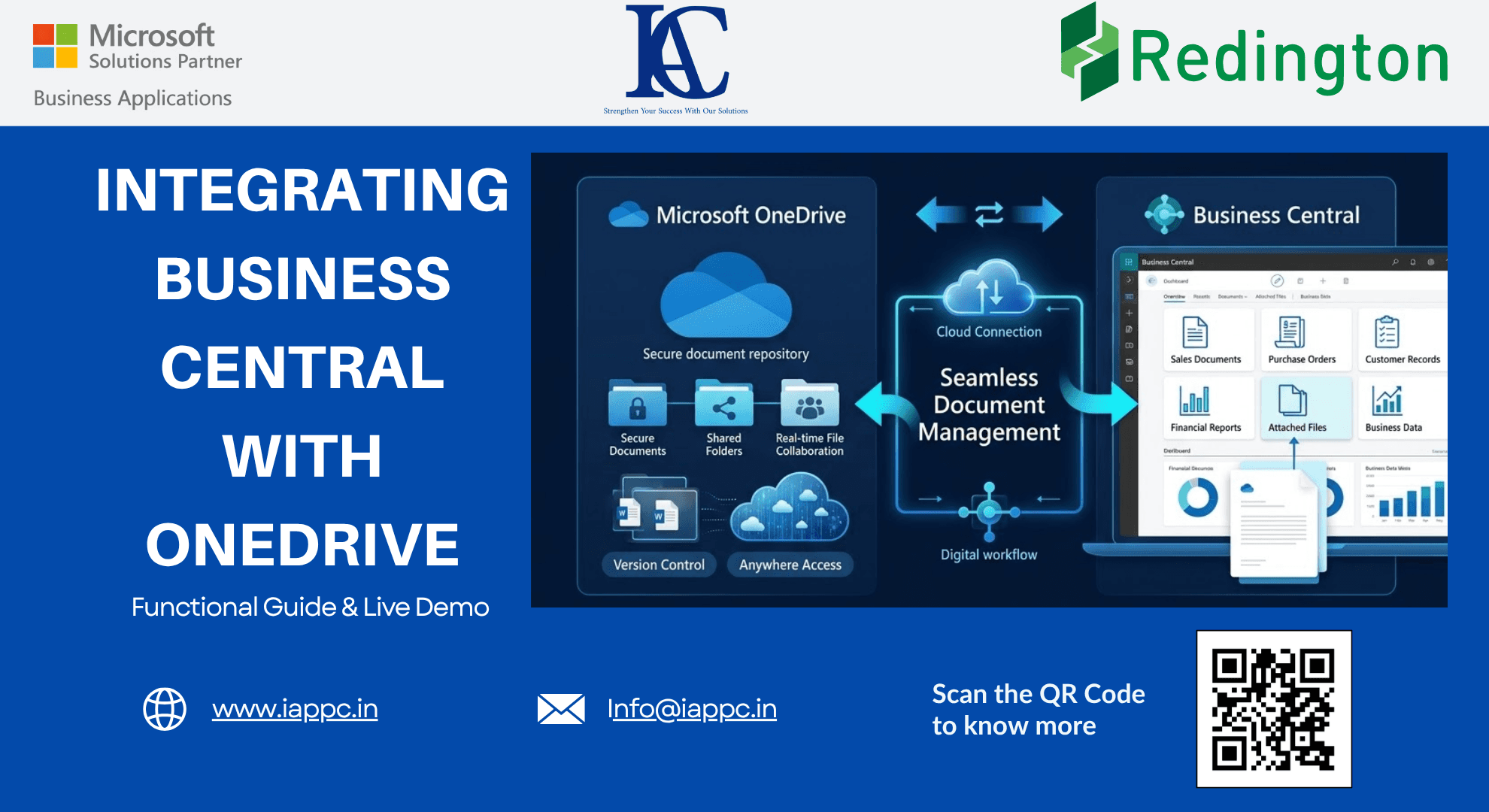
3. Eliminate the Local Download Chaos with OneDrive Integration in Your Business Central Environment
A hidden contributor to data duplication is the traditional export-and-email workflow.
Many users still:
Export reports
Save files locally
Create multiple versions
Email spreadsheets repeatedly
This behavior creates:
Version control problems
Duplicate documents
Data inconsistency
Security concerns
Business Central's native integration with Microsoft OneDrive changes this completely.
Using:
Open in OneDrive
Edit in OneDrive
Users can work directly in cloud-based files without creating unnecessary local copies.
Supported formats include:
Excel (.xlsx)
Word (.docx)
PowerPoint (.pptx)
Open Document Text (.odt)
Text files (.txt)
This enables collaborative editing while maintaining a single source of truth.
Business Impact
Benefits include:
Reduced document duplication
Better collaboration
Improved data governance
Enhanced productivity
4. Retention Policies: The Ultimate "Set It and Forget It" Strategy
Many organizations attempt periodic cleanup exercises.
Examples include:
Deleting old logs
Removing archive records
Purging unused data
While useful, manual cleanups are difficult to sustain.
The better solution is automated data governance through Retention Policies.
Business Central allows administrators to define retention rules that automatically remove unnecessary records after a specified period.
Examples include:
Log Cleanup
Automatically remove system logs older than a defined threshold.
Archived Documents
Delete outdated archives no longer required for operational purposes.
Temporary Records
Prevent temporary operational data from consuming valuable storage.
Instead of reacting to storage growth after it becomes a problem, retention policies continuously maintain a healthy environment.
Business Impact
Organizations benefit from:
Reduced storage consumption
Better system performance
Lower administrative effort
Consistent governance
This is the ERP equivalent of maintaining a healthy diet rather than relying on emergency crash diets.
5. Use Automation to Move Data Outside the ERP
Modern ERP systems are no longer isolated platforms.
Business Central integrates seamlessly with:
Microsoft Power Automate
Microsoft Teams
SharePoint
OneDrive
Azure services
This allows organizations to create intelligent workflows that move information outside the ERP when appropriate.
Consider a quality inspection process.
Instead of storing every document manually inside Business Central:
Workflow Example
Quality inspection is completed.
The PDF report is automatically generated.
The document is saved in OneDrive.
Notification is sent to Microsoft Teams.
Stakeholders receive instant access.
This approach delivers several benefits:
Reduced ERP storage usage
Improved collaboration
Faster information sharing
Better document management
By leveraging Business Events and Power Automate, businesses can keep Business Central focused on transactional data while supporting broader operational workflows.
Business Impact
Organizations gain:
Cleaner ERP databases
Faster access to documents
Reduced duplication
Stronger process automation
Building a Lean ERP Strategy for Business Central Environment
Successful ERP optimization requires more than occasional cleanups.
It requires a structured strategy built around four key pillars:
1. Continuous Monitoring
Regularly review storage utilization through the Business Central Administration Center.
2. Automated Data Governance
Implement retention policies to prevent unnecessary data accumulation.
3. Intelligent Integrations
Use OneDrive, Teams, SharePoint, and Power Automate to reduce redundancy.
4. Strategic Capacity Planning
Align licensing, storage requirements, and future growth initiatives.
Organizations that adopt this approach create ERP environments that remain scalable, agile, and cost-effective for years.
Conclusion Your Business Central Environment
Data growth is inevitable.
Storage problems are not.
Microsoft Dynamics 365 Business Central provides the tools needed to manage capacity proactively, automate governance, streamline collaboration, and optimize performance.
The organizations that succeed with ERP are not necessarily those with the most data.
They are the ones who manage their data most effectively.
By monitoring capacity, implementing retention policies, leveraging OneDrive integration, and automating workflows, businesses can transform Business Central from a growing storage challenge into a lean, high-performance foundation for long-term growth.
The question is no longer whether your ERP contains too much data.
The real question is whether your data is helping your business grow or quietly slowing it down.
FAQs
What is Business Central Storage Optimization?
Business Central Storage Optimization is the process of managing database growth, retention policies, integrations, and storage capacity to improve ERP performance and reduce costs.
How can I check Business Central storage usage?
Administrators can monitor storage utilization through the Business Central Administration Center Capacity page.
What happens if Business Central exceeds storage limits?
Transactions continue processing, but creating new environments, sandboxes, and copies may be restricted.
How do retention policies help Business Central?
Retention policies automatically remove unnecessary records, logs, and archived data to maintain system performance and reduce storage consumption.
Does OneDrive integration reduce ERP storage needs?
Yes. OneDrive helps reduce duplication by enabling direct cloud-based collaboration and document management outside the ERP database.
Is storage management important for Business Central performance?
Yes. Effective storage management improves scalability, supports innovation, reduces costs, and maintains optimal system performance.