The Power of Three: 5 Microsoft Dynamics 365 Business Central Job Queue Best Practices for Better Performance
Learn five Microsoft Dynamics 365 Business Central Job Queue best practices to improve automation, optimize performance, prevent task failures, and manage background processes efficiently.
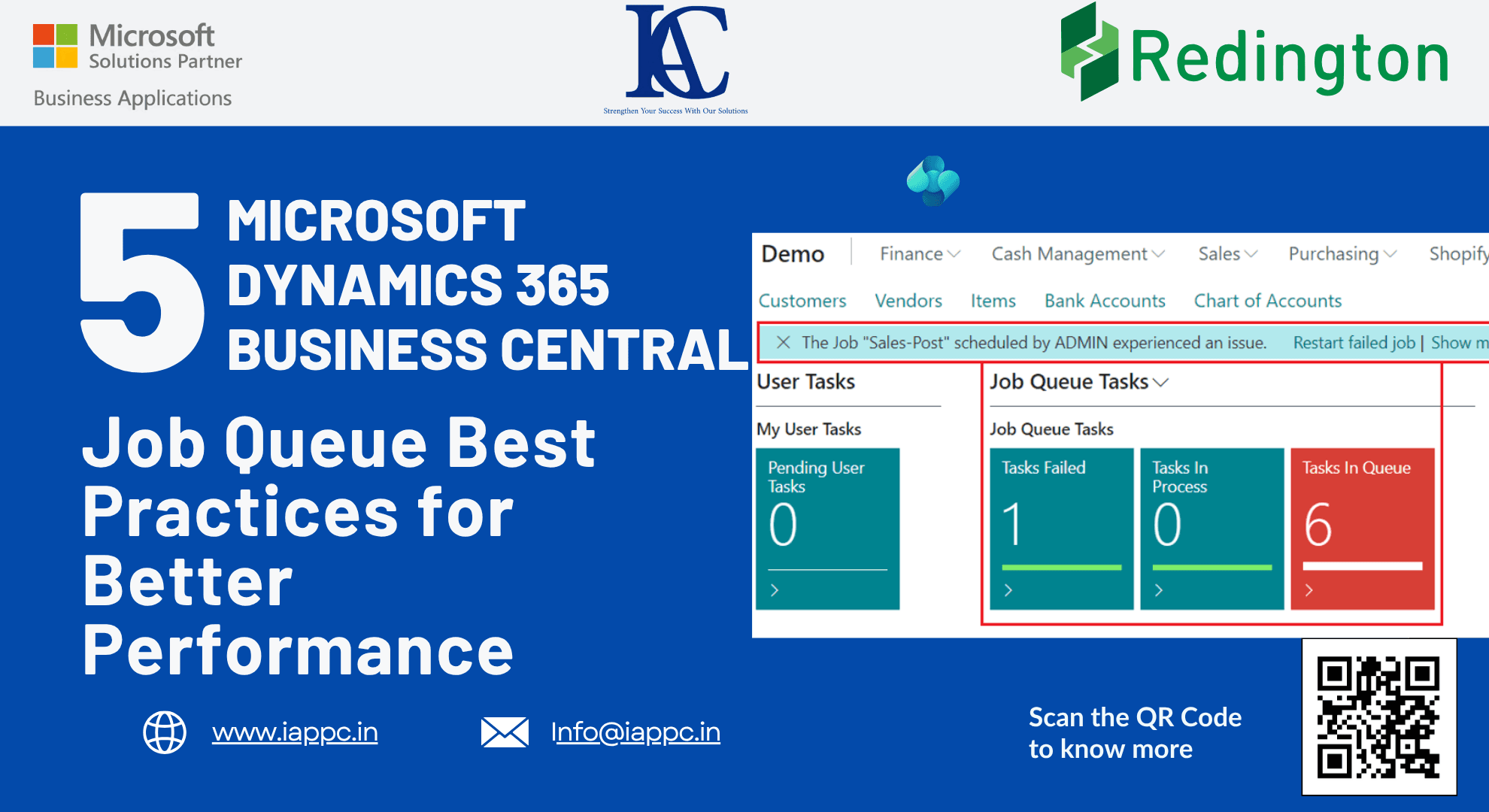
Introduction
Automation is one of the biggest advantages of Microsoft Dynamics 365 Business Central.
Behind every scheduled report, automated posting, synchronization process, and background integration is the Job Queue- the engine that keeps critical business processes running without manual intervention.
However, as organizations grow, many administrators begin to experience slow processing, failed background tasks, overlapping jobs, or performance bottlenecks. These issues often occur not because Business Central lacks capability, but because Job Queues are not configured with scalability in mind.
Understanding how Business Central schedules and manages background tasks is essential for maintaining a stable, high-performing ERP environment.
Here are five best practices every Business Central administrator and Solution Architect should know.

Why Job Queues Matter in Business Central
Job Queues automate repetitive business processes, including:
Scheduled report generation
Batch posting
Data synchronization
Integration workflows
Background calculations
Notifications
Inventory updates
Proper configuration improves:
System performance
Process reliability
User productivity
Resource utilization
Operational efficiency
1. Understand the Three Concurrent Task Limit
One of the most important architectural limits in Microsoft Dynamics 365 Business Central SaaS is the maximum number of concurrent scheduled tasks.
Regardless of the number of companies or users, only three scheduled tasks can run simultaneously within a single Business Central environment.
This limitation helps Microsoft maintain:
Platform stability
Resource governance
Database performance
Reduced record locking
Consistent cloud scalability
Why It Matters
When too many background jobs are scheduled at the same time, they compete for these three execution slots, causing delays and increasing the likelihood of processing failures.
Understanding this limit is the foundation of effective Job Queue planning.
2. Plan Job Queues for Multi-Company Environments
Many organizations manage multiple legal entities within a single Business Central environment.
Although companies are separate from a business perspective, they still share the same Job Queue scheduler.
For example:
10 companies
10 scheduled jobs per company
100 background tasks
All of these tasks compete for the same three execution slots.
Best Practices
Spread scheduled jobs across different time windows.
Avoid scheduling multiple heavy processes simultaneously.
Monitor execution times regularly.
Separate high-volume workloads where necessary.
Spread scheduled jobs across different time windows.
Avoid scheduling multiple heavy processes simultaneously.
Monitor execution times regularly.
Separate high-volume workloads where necessary.
As the number of companies increases, careful scheduling becomes increasingly important to maintain system performance.
3. Use Categories and Priorities the Right Way
Many administrators rely only on Priority when configuring Job Queues.
However, Categories are equally important.
Priority
Priority determines which job starts first when an execution slot becomes available.
Category
Categories determine which jobs should not run simultaneously.
This helps prevent:
Database locks
Posting conflicts
Deadlocks
Ledger inconsistencies
Example
Assign all sales posting jobs to the same category.
Business Central ensures these jobs run one after another instead of competing for the same records.
Meanwhile, read-only processes such as reporting or notifications can safely execute in parallel.
Using both Categories and Priorities together creates a more stable and predictable automation environment.
4. Monitor Job Queues with Automated Notifications
Business Central now provides significantly improved monitoring capabilities for Job Queues.
Instead of manually checking Job Queue logs every morning, administrators can receive automatic alerts when problems occur.
Available Monitoring Options
In-Application Notifications
Failed task alerts
Running task indicators
Queued task visibility
Role Center notifications
External Notifications
Using Microsoft Power Automate or Business Events, organizations can automatically send alerts through:
Microsoft Teams
Email
Other integrated monitoring platforms
Benefits
Faster issue resolution
Reduced downtime
Improved administrator visibility
Proactive system management
Faster issue resolution
Reduced downtime
Improved administrator visibility
Proactive system management
Automation should notify administrators when problems occur, not rely on manual discovery.
5. Configure Retry Logic for Reliable Automation
Not every Job Queue failure requires manual intervention.
Temporary issues such as database locks or network interruptions often resolve automatically if retry settings are configured correctly.
Business Central allows administrators to define:
Maximum Number of Attempts
Rerun Delay
Recommended Configuration
Set retry attempts between 1 and 10
Reserve one-minute intervals for only the most critical jobs
Use longer intervals for standard background processes
Set retry attempts between 1 and 10
Reserve one-minute intervals for only the most critical jobs
Use longer intervals for standard background processes
Investigate Before Restarting
Before restarting failed jobs, review the Error Call Stack.
This helps distinguish between:
Temporary system issues
Data problems
Business logic errors
Configuration issues
Understanding the root cause prevents recurring failures and improves long-term system reliability.
Key Takeaways
Business Central allows a maximum of three concurrent scheduled tasks per environment.
Multi-company environments require careful Job Queue scheduling.
Categories prevent conflicting jobs from running simultaneously.
Automated notifications help administrators respond quickly to failures.
Proper retry settings improve automation reliability and reduce manual intervention.
Business Central allows a maximum of three concurrent scheduled tasks per environment.
Multi-company environments require careful Job Queue scheduling.
Categories prevent conflicting jobs from running simultaneously.
Automated notifications help administrators respond quickly to failures.
Proper retry settings improve automation reliability and reduce manual intervention.
Frequently Asked Questions
What is a Job Queue in Microsoft Dynamics 365 Business Central?
A Job Queue automates scheduled background processes such as report generation, posting, integrations, notifications, and data synchronization.
How many Job Queues can run simultaneously?
In Business Central SaaS, a maximum of three scheduled tasks can run concurrently within a single environment.
What is the difference between Priority and Category?
Priority determines execution order, while Categories prevent conflicting jobs from running at the same time.
How can administrators monitor Job Queue failures?
Business Central supports in-application notifications, Role Center alerts, Business Events, and Power Automate integrations for proactive monitoring.
What happens if retry attempts are set to zero?
The job stops immediately after the first failure without attempting automatic recovery, increasing the likelihood of manual intervention.
Conclusion
Job Queues are the automation backbone of Microsoft Dynamics 365 Business Central, supporting everything from financial posting to integrations and operational workflows.
As organizations scale, simply scheduling background tasks is no longer enough. Administrators must understand concurrency limits, design efficient scheduling strategies, configure categories correctly, monitor failures proactively, and implement intelligent retry logic.
By following these best practices, organizations can build a more reliable, scalable, and high-performing Business Central environment that supports business growth without sacrificing system stability.
Want to optimize your Microsoft Dynamics 365 Business Central environment for performance and scalability?
At IAPPC, we help businesses configure Job Queues, improve ERP performance, automate business processes, and implement best practices that keep Business Central running efficiently as your organization grows.
Connect with our Business Central experts today to ensure your ERP automation is built for long-term success.